
LoL Ping Fix and FPS Drops: Region and OS Troubleshooting Guide
High ping and sudden FPS drops in League of Legends usually come from three places, your region and route to Riot, your own network, or your PC and operating system. This guide shows how to tell them apart and fix the right problem faster.
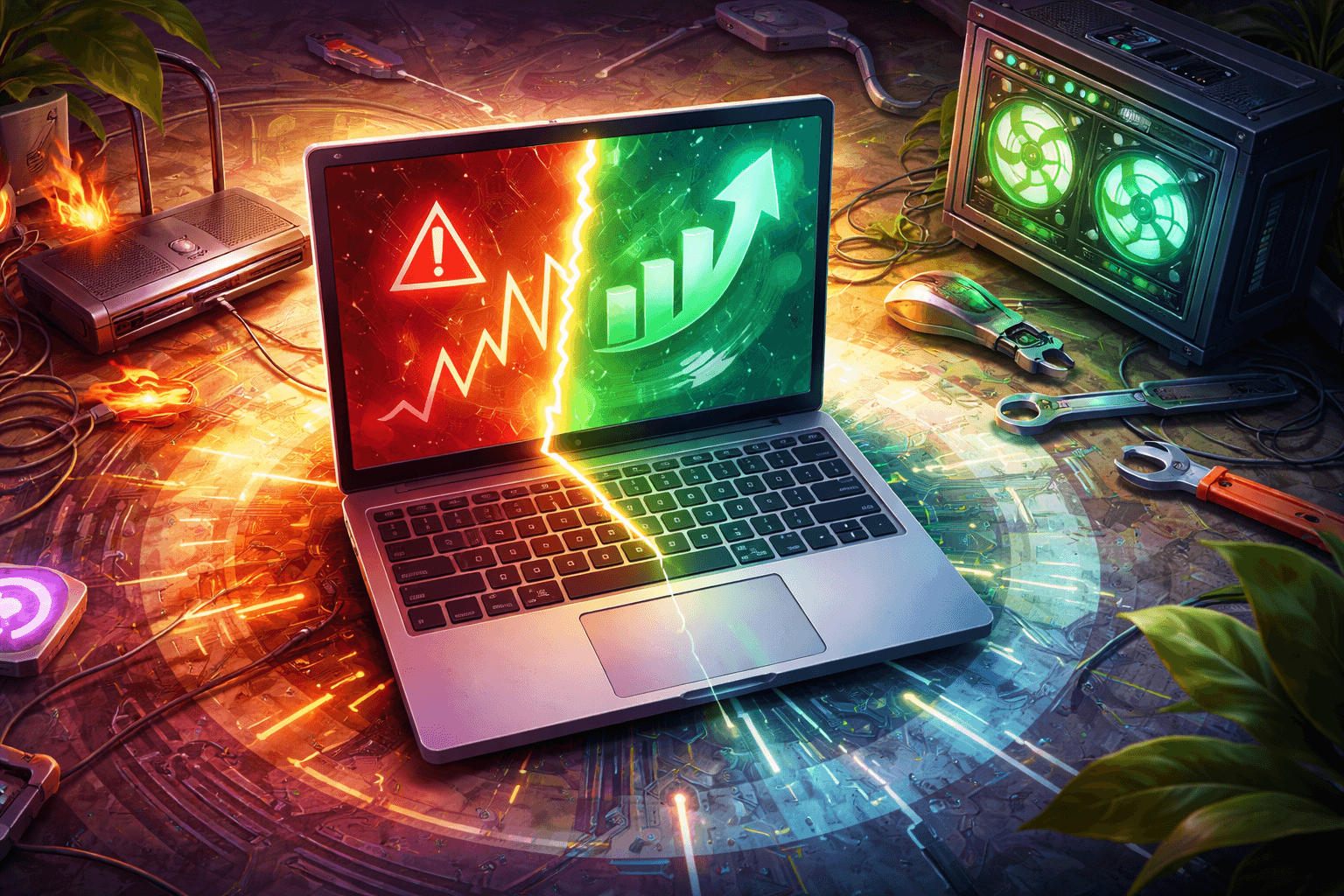
What high ping and FPS drops usually mean
If your League matches suddenly feel bad, the first step is separating network problems from performance problems. Riot defines latency, or ping, as the time it takes data to travel between your PC and Riot servers. Riot also notes that physical distance to the game server is the biggest contributor to normal latency, while packet loss and jitter are signs of unstable delivery rather than raw distance. By contrast, FPS drops are local performance problems tied to your hardware, drivers, thermals, game settings, or operating system behavior. Riot’s Basic Connections Troubleshooting Guide and Low Frame Rate Troubleshooting make that distinction very clearly. ([League of Legends Support][1])
A lot of players waste time chasing the wrong fix. If your ping is high but your FPS is steady, changing video settings will not solve the real issue. If your FPS is tanking while ping stays normal, router tweaks and DNS swaps are usually a distraction. Riot’s own support flow is built around isolating whether the cause is Riot, your ISP, or your local setup first. Riot Support ([League of Legends Support][1])
Use this quick diagnosis first
| Symptom | Most likely cause | Best first check |
|---|---|---|
| High ping, normal FPS | Region distance, ISP route, WiFi instability, VPN | Server status, region, Ethernet, no VPN |
| Normal ping, low FPS | Game settings, drivers, thermal limits, background apps | Lower settings, update drivers, clean boot |
| Ping spikes and rubber banding | Packet loss, jitter, wireless interference, background downloads | Ethernet, stop streams and downloads, log reader |
| FPS drops only in fights | GPU or CPU load, shadows and effects too high | Lower in game settings, close overlays |
| Client is slow but game is fine | Client side issue, not match FPS | Enable Low Spec Mode, close client during game |
| Both feel bad at the same time | Overlays, thermals, OS conflicts, serious background load | Clean boot, check temps, close overlays |
That table lines up closely with Riot’s support material. Riot’s connection guide points to latency, packet loss, and jitter for network issues, while Riot’s FPS guide focuses on graphics settings, heat, drivers, and background software. Riot connection guide, Riot FPS guide ([League of Legends Support][1])
Start with region before touching your PC
Region matters more than many players want to admit. Riot says that when your connection is otherwise normal, physical distance from Riot game servers is the largest contributor to latency. So if you are playing on a far away server, your baseline ping may simply be higher even if nothing is broken. Riot Support ([League of Legends Support][1])
Riot also ties each account to a specific League region. You can play on multiple servers through the same launcher, but each region is still separate, and each Riot account is associated with a region. Before troubleshooting deeply, make sure you are actually logging into the region you think you are. League of Legends Regional Servers ([League of Legends Support][2])
A good example is PBE. Riot explicitly says the PBE servers are hosted in North America, so players outside North America should expect higher than normal ping there. That is not the same as a broken home network. PBE FAQ ([League of Legends Support][3])
Before changing settings, check Riot Games Service Status for your region. Riot’s own troubleshooting guide tells players to start there, then use the regional Lag Report where available. Riot also says its Connection Troubleshooting Log Reader can help analyze a recent match, and that if your connection score is 90 or above, the issue is likely not network related. ([League of Legends Support][1])
Fix high ping the right way
Riot’s first network advice is still the most reliable. Switch to a wired connection if you can. Riot says wireless connections are harder to troubleshoot because environmental interference can cause lag spikes and packet loss. Riot also recommends avoiding VPNs and proxies unless a Riot technical specialist specifically asks you to test one. Riot’s Basic Connections Troubleshooting Guide ([League of Legends Support][1])
This is also the moment to close bandwidth heavy apps. Riot lists common causes of packet buffering such as Discord, Spotify, HD streaming, torrent clients, and active downloads. That does not mean those apps are always the culprit, but they are absolutely worth shutting down during testing. Riot Support ([League of Legends Support][1])
If ping problems persist after that, update your network adapter drivers and operating system. Riot recommends OS updates on both Windows and Mac for connection related issues, and specifically calls out network driver updates as part of connection troubleshooting. Fix My League, Basic Connections Troubleshooting ([League of Legends Support][4])
The best first fixes for FPS drops
For in game FPS drops, Riot recommends starting with the game itself. Their baseline test profile is simple:
- Settings: Custom
- Resolution: Match desktop resolution
- Character Quality: Very Low
- Environment Quality: Very Low
- Shadows: No Shadow
- Effects Quality: Very Low
- Frame Rate Cap: 60 FPS
- Wait for Vertical Sync: Unchecked
- Anti Aliasing: Unchecked
Riot also suggests disabling some interface features such as HUD animations, target frame on attack, line missile display, and show attack range while testing. Riot FPS guide ([League of Legends Support][5])
If the game becomes stable on those settings, the problem is probably local performance, not the server. If performance still falls apart even on low settings, move to drivers, thermals, and background software next. Riot explicitly says its tweaks can help, but they cannot push performance beyond your hardware’s limits. Riot FPS guide ([League of Legends Support][5])
Heat is another common cause. Riot notes that if your system runs fine for a while and then slows down, overheating may be the real reason. Their recommendation is to clean vents and fans to improve airflow. On laptops, Riot also notes that low battery power can cause significant FPS loss, so testing while plugged in is important. Riot FPS guide ([League of Legends Support][5])
Windows troubleshooting that actually matters
If you are on Windows, update your graphics drivers and Windows itself before going deeper. Riot’s current support guidance repeatedly points to driver and OS updates as a core fix for crashes and performance issues. Fix My League ([League of Legends Support][4])
Current system requirements matter too. Riot’s January 2026 requirements page says League now requires DirectX 11 feature level 11_0 on Windows, and Windows 10 systems need build 19041 or later. Riot also notes that since patch 25.21, unsupported graphics technology can gray out the Play button entirely. Minimum and Recommended System Requirements ([League of Legends Support][6])
If you play in borderless or windowed mode on Windows 11, Microsoft says Optimizations for windowed games can improve DirectX 10 and DirectX 11 game performance and reduce frame latency. Since League is a DirectX 11 game on Windows, this setting is worth testing. Microsoft also lets you set a per app graphics preference if your PC has more than one GPU. ([Microsoft Support][7])
At the same time, Riot still has a dedicated guide for disabling Full Screen Optimization when it causes problems. That sounds contradictory, but it is really a reminder that Windows performance settings are sometimes system dependent. If borderless mode feels worse, test the opposite path and disable Full Screen Optimization for League specifically. ([League of Legends Support][8])
Power mode is another overlooked fix on laptops. Microsoft says you can change Windows power mode under Settings, then System, then Power & battery, and choose a more performance focused option when plugged in. Riot’s FPS guide also recommends enabling a performance power plan on laptops instead of battery saving modes. Microsoft Support, Riot FPS guide ([Microsoft Support][9])
If you suspect overlays or background apps, do a clean boot. Riot specifically calls out overlay software such as Discord, OBS, and Steam as potential interference, and Microsoft’s clean boot process is the cleanest way to isolate that kind of conflict. Riot Fix My League, Microsoft clean boot guide ([League of Legends Support][4])
macOS troubleshooting that is easy to miss
Mac players have a few extra edge cases. Riot’s current requirements page says League is only natively supported on Intel macOS, and Riot also notes that Metal is now required on Mac. That alone makes system compatibility worth checking before you blame your network or graphics settings. Riot system requirements ([League of Legends Support][6])
Riot also has an older but still useful Mac specific guide that recommends disabling macOS features which can interfere with League. Two notable examples are Hot Corners and Shake Mouse Pointer to Locate, both of which Riot says can interrupt or temporarily drop performance in game. Optimal Settings for Mac Players ([League of Legends Support][10])
On Apple silicon Macs running macOS Sonoma 14 or later, Apple says Game Mode gives the game highest priority access to CPU and GPU resources and can improve frame rate consistency and responsiveness in full screen mode. That is worth trying if your setup supports it. ([Apple Support][11])
Mac players should also close heavy background apps before queueing. Riot specifically recommends checking Activity Monitor for CPU heavy processes, especially other 3D applications or memory heavy tools, when investigating FPS loss on macOS. Riot FPS guide ([League of Legends Support][5])
Do not ignore the client side fixes
Sometimes the match itself is fine and the client is the thing struggling. Riot’s Fix My League recommends enabling Low Spec Mode in the client settings. Riot’s older client performance article also recommends using Close Client During Game when the issue is the updated client rather than in game FPS. That will not fix every match performance issue, but it can remove client overhead from the equation. ([League of Legends Support][4])
If you suspect corrupted files, Riot now includes a Riot Client Full Repair Tool in the client settings. Riot says it can repair missing or corrupted files automatically. ([League of Legends Support][12])
Know when Vanguard is part of the equation
If League is failing to launch, freezing at the wrong time, or acting weird after security related changes, remember that Riot Vanguard is now part of the League stack. Riot says Vanguard must be active during League gameplay and while the client is open. If it is disabled or uninstalled, League will not run, and re enabling it may require a restart. Riot Vanguard FAQ ([League of Legends Support][13])
That means troubleshooting advice copied from old forum posts can now be misleading. If a guide tells you to disable everything and League still will not launch, Vanguard may be one reason. Check Riot’s official Vanguard troubleshooting before assuming your GPU or internet is the issue. Riot Vanguard FAQ ([League of Legends Support][13])
When to stop guessing and use Riot’s tools
Riot’s own toolkit is better than random Reddit voodoo. Use these when the problem is persistent:
- Check Riot Games Service Status for regional outages.
- Use the Connection Troubleshooting Log Reader if the issue feels network related.
- Use the Riot Client Full Repair Tool for damaged client files.
- Use the Riot Repair Tool, RRT to gather logs for a support ticket.
Riot says RRT is the fastest way to collect the logs support needs, and the log reader can quickly tell you whether your last bad match was probably a network problem or not. ([Riot Games Status][14])
Conclusion
The cleanest way to fix League ping and FPS issues is to stop treating them like the same problem. Start with region and server status for ping. Start with settings, drivers, thermals, and background apps for FPS. Then move into Windows or macOS specific fixes only after you know which side is actually failing. Riot’s own support docs are much more useful once you use them in that order. ([League of Legends Support][1])
Sources
- Riot Games Service Status
- Basic Connections Troubleshooting Guide
- Connection Troubleshooting Log Reader
- Low Frame Rate (FPS) Troubleshooting
- Fix My League: The First Steps to Tech Help
- Minimum and Recommended System Requirements (League of Legends)
- League of Legends Regional Servers
- Public Beta Environment FAQ
- Lag, Disabling Full Screen Optimization
- Riot Client Full Repair Tool
- Gathering Logs, Riot Repair Tool (RRT)
- Riot Vanguard FAQ (League of Legends)
- Optimal Settings for Mac Players
- Optimizations for windowed games in Windows 11
- How to perform a clean boot in Windows
- Change the power mode for your Windows PC
- Use Game Mode on Mac
[1]: https://support-leagueoflegends.riotgames.com/hc/en-us/articles/201752664-Basic-Connections-Troubleshooting-Guide "Basic Connections Troubleshooting Guide – League of Legends Support" [2]: https://support-leagueoflegends.riotgames.com/hc/en-us/articles/201751684-League-of-Legends-Regional-Servers "League of Legends Regional Servers – League of Legends Support" [3]: https://support-leagueoflegends.riotgames.com/hc/en-us/articles/201751904-Public-Beta-Environment-FAQ?utm_source=chatgpt.com "Public Beta Environment FAQ - League of Legends Support" [4]: https://support-leagueoflegends.riotgames.com/hc/en-us/articles/115002832247-Fix-My-League-The-First-Steps-to-Tech-Help "Fix My League: The First Steps to Tech Help – League of Legends Support" [5]: https://support-leagueoflegends.riotgames.com/hc/en-us/articles/201752684-Low-Frame-Rate-FPS-Troubleshooting "Low Frame Rate (FPS) Troubleshooting – League of Legends Support" [6]: https://support-leagueoflegends.riotgames.com/hc/en-us/articles/201752654-Minimum-and-Recommended-System-Requirements-League-of-Legends "Minimum and Recommended System Requirements (League of Legends) – League of Legends Support" [7]: https://support.microsoft.com/en-us/windows/optimizations-for-windowed-games-in-windows-11-3f006843-2c7e-4ed0-9a5e-f9389e535952?utm_source=chatgpt.com "Optimizations for windowed games in Windows 11" [8]: https://support-leagueoflegends.riotgames.com/hc/en-us/articles/360001500627-Lag-Disabling-Full-Screen-Optimization "Lag - Disabling Full Screen Optimization – League of Legends Support" [9]: https://support.microsoft.com/en-us/windows/change-the-power-mode-for-your-windows-pc-c2aff038-22c9-f46d-5ca0-78696fdf2de8?utm_source=chatgpt.com "Change the power mode for your Windows PC" [10]: https://support-leagueoflegends.riotgames.com/hc/en-us/articles/115004641468-Optimal-Settings-for-Mac-Players "Optimal Settings for Mac Players – League of Legends Support" [11]: https://support.apple.com/en-us/105118 "Use Game Mode - Apple Support" [12]: https://support-leagueoflegends.riotgames.com/hc/en-us/articles/42502480335763-Riot-Client-Full-Repair-Tool "Riot Client Full Repair Tool – League of Legends Support" [13]: https://support-leagueoflegends.riotgames.com/hc/en-us/articles/24169857932435-Riot-Vanguard-FAQ-League-of-Legends "Riot Vanguard FAQ (League of Legends) – League of Legends Support" [14]: https://status.riotgames.com/?utm_source=chatgpt.com "Riot Games Service Status"
EloFactory
Editorial insights from the EloFactory team.
Article details
Related content
Related articles

May 6, 2026
ARAM Mayhem's augment system hides some genuinely absurd champion combos that most players never see coming. Here are the most broken synergies flying under the radar.
May 4, 2026
ELO boosting is when someone artificially raises a player's rank, usually by playing on their account or by manipulating ranked results. In League of Legends, Riot treats boosting as rank manipulation and ties it directly to account sharing and penalties.

Apr 18, 2026
The next League of Legends Blue Essence Emporium is already on Riot's roadmap, but the exact 2026 catalog is not fully public yet. Here is what is confirmed, what usually appears in the shop, and the fastest legitimate way to build a 250,000 BE bankroll.